Animaid
A GUI toolkit for animating Python data structures.
Overview
Animaid provides tools to visualize and render Python data structures as styled HTML for educational and presentation purposes. It includes classes that subclass Python’s built-in types:
HTMLString - A
strsubclass for rendering styled textHTMLInt - An
intsubclass for formatted numbers (currency, percentages, ordinals)HTMLFloat - A
floatsubclass for decimal formatting and unitsHTMLList - A
listsubclass for rendering lists with layout optionsHTMLDict - A
dictsubclass for rendering key-value pairsHTMLTuple - A
tuplesubclass with support for named tuplesHTMLSet - A
setsubclass for rendering unique items as tags or pillsApp - A Tkinter-like interactive GUI environment using HTML
Window - Runtime window control for theming, title, and size
WindowConfig - Configuration for window initialization
All classes support a fluent API for chaining style methods and are compatible with Jinja2 templates via the __html__() protocol.
The App class provides a real-time browser-based display where you can add, update, and remove AnimAID objects programmatically with live updates via WebSocket.
Installation
pip install animaid
Or for development:
git clone https://github.com/jdrumgoole/animaid.git
cd animaid
uv pip install -e ".[dev,docs]"
Quick Start
HTMLString
Style text with CSS properties:
from animaid import HTMLString, Color, Size

# Basic styling with strings
s = HTMLString("Hello, World!").bold().color("blue")
print(s.render())
# <span style="font-weight: bold; color: blue">Hello, World!</span>

# Using CSS types for type-safe styling
styled = (
    HTMLString("Important!")
    .bold()
    .italic()
    .color(Color.red)
    .background(Color.hex("#ffff00"))
    .padding(Size.px(10))
)
HTMLList
Render lists with flexible layouts:
from animaid import HTMLList, Size, Color, Border

# Horizontal list with styled items
items = HTMLList(["Apple", "Banana", "Cherry"])
items = items.horizontal().gap(Size.px(10)).item_padding(Size.px(8))
print(items.render())

# Grid layout with CSS types
grid = (
    HTMLList(["A", "B", "C", "D", "E", "F"])
    .grid(3)
    .gap(Size.px(5))
    .item_border(Border().solid().color(Color.gray))
)
HTMLDict
Display key-value pairs in multiple formats:
from animaid import HTMLDict, Color, Size, Border

# Definition list format (default)
d = HTMLDict({"name": "Alice", "role": "Developer"})
d = d.key_bold().key_color(Color.hex("#333")).value_color(Color.hex("#666"))
print(d.render())

# Table format
table = HTMLDict({"x": 1, "y": 2, "z": 3}).as_table()

# Card layout with CSS types
card = (
    HTMLDict({"Name": "Alice", "Email": "alice@example.com"})
    .key_bold()
    .padding(Size.px(12))
    .border(Border().solid().color(Color.hex("#ccc")))
    .border_radius(Size.px(8))
)
HTMLInt
Format integers with various display options:
from animaid import HTMLInt

# Basic integer with styling
n = HTMLInt(42).bold().blue()
print(n.render())
# <span style="font-weight: bold; color: blue">42</span>

# Thousand separators
HTMLInt(1234567).comma().render()
# <span>1,234,567</span>

# Currency formatting
HTMLInt(1999).currency("$").bold().green()
# <span style="font-weight: bold; color: green">$1,999</span>

# Percentage
HTMLInt(85).percent().render()
# <span>85%</span>

# Ordinal numbers
HTMLInt(1).ordinal().render()   # "1st"
HTMLInt(2).ordinal().render()   # "2nd"
HTMLInt(3).ordinal().render()   # "3rd"

# Badge preset (circular number badge)
HTMLInt(42).badge()
HTMLFloat
Format floating-point numbers with precision control:
from animaid import HTMLFloat

# Basic float with styling
f = HTMLFloat(3.14159).bold().render()
# <span style="font-weight: bold">3.14159</span>

# Control decimal places
HTMLFloat(3.14159).decimal(2).render()
# <span>3.14</span>

# Thousand separators
HTMLFloat(1234567.89).comma().render()
# <span>1,234,567.89</span>

# Percentage (multiplies by 100)
HTMLFloat(0.856).percent().render()
# <span>85.60%</span>

# Currency
HTMLFloat(19.99).currency("$").render()
# <span>$19.99</span>

# Scientific notation
HTMLFloat(0.000123).scientific().render()
# <span>1.23e-04</span>

# Add units
HTMLFloat(72.5).unit("kg").render()
# <span>72.5 kg</span>
HTMLTuple
Render tuples with flexible layouts and named tuple support:
from animaid import HTMLTuple
from collections import namedtuple

# Basic tuple
t = HTMLTuple((1, 2, 3))
t.render()
# <div>(1, 2, 3)</div>

# Horizontal layout with pills
HTMLTuple(("Red", "Green", "Blue")).horizontal().pills()

# Vertical layout
HTMLTuple(("First", "Second", "Third")).vertical().gap("8px")

# Named tuple support with labels
Point = namedtuple('Point', ['x', 'y'])
HTMLTuple(Point(10, 20)).labeled()
# Renders as: x: 10, y: 20

# Custom separator
HTMLTuple((1, 2, 3)).separator(" | ")
# <div>1 | 2 | 3</div>

# Without parentheses
HTMLTuple((1, 2, 3)).plain()
# <div>1, 2, 3</div>
HTMLSet
Render unique items as tags or pills:
from animaid import HTMLSet

# Basic set (duplicates automatically removed)
tags = HTMLSet(["Python", "Web", "Python", "HTML"])
# Only contains: Python, Web, HTML

# Pills preset (rounded pill-style items)
HTMLSet({"python", "javascript", "rust"}).pills()

# Tags preset
HTMLSet({"urgent", "bug", "help-wanted"}).tags()

# Horizontal layout with gap
HTMLSet({"A", "B", "C"}).horizontal().gap("10px")

# Custom item styling
HTMLSet({"one", "two", "three"}).item_background("#e3f2fd").item_padding("8px 12px")
HTMLSet is reactive - when used with App, adding or removing items automatically updates the browser:
from animaid import App, HTMLSet

with App() as app:
    tags = HTMLSet({"python"}).pills()
    app.add(tags)

    tags.add("javascript")  # Browser updates automatically
    tags.add("rust")        # Browser updates automatically
    tags.discard("python")  # Browser updates automatically
Nested Structures
Combine types for complex visualizations:
from animaid import HTMLDict, HTMLList, Size, Border, Color

# Dict of Lists
categories = HTMLDict({
    "Fruits": HTMLList(["Apple", "Banana"]).horizontal().gap(Size.px(8)),
    "Vegetables": HTMLList(["Carrot", "Broccoli"]).horizontal().gap(Size.px(8)),
}).key_bold()

# List of Dicts (cards)
card_border = Border().solid().color(Color.hex("#ddd"))
cards = HTMLList([
    HTMLDict({"Name": "Alice", "Role": "Dev"}).key_bold().padding(Size.px(10)).border(card_border),
    HTMLDict({"Name": "Bob", "Role": "Design"}).key_bold().padding(Size.px(10)).border(card_border),
]).horizontal().gap(Size.px(16))
CSS Types
Animaid provides type-safe CSS value classes that can be used instead of raw strings. These provide better IDE autocomplete, validation, and documentation.
Size
Create CSS size values with explicit units:
from animaid import Size

Size.px(16)       # "16px"
Size.em(1.5)      # "1.5em"
Size.rem(2)       # "2rem"
Size.percent(50)  # "50%"
Size.vh(100)      # "100vh"
Size.vw(80)       # "80vw"
Size.auto()       # "auto"
Color
Create CSS color values with validation:
from animaid import Color

# Named colors
Color.red         # "red"
Color.blue        # "blue"

# Hex colors
Color.hex("#ff0000")   # "#ff0000"
Color.hex("00f")       # "#00f" (auto-adds #)

# RGB/RGBA
Color.rgb(255, 0, 0)        # "rgb(255, 0, 0)"
Color.rgba(255, 0, 0, 0.5)  # "rgba(255, 0, 0, 0.5)"

# HSL/HSLA
Color.hsl(120, 100, 50)       # "hsl(120, 100%, 50%)"
Color.hsla(120, 100, 50, 0.5) # "hsla(120, 100%, 50%, 0.5)"
Border
Create CSS border values with a fluent API:
from animaid import Border, BorderStyle, Color, Size

# Using constructor
Border(Size.px(1), BorderStyle.SOLID, Color.black)  # "1px solid black"

# Using fluent API
Border().width(2).solid().color("red")    # "2px solid red"
Border().dashed().color(Color.blue)       # "1px dashed blue"

# Factory methods
Border.solid(2, "black")   # "2px solid black"
Border.dashed(1, "gray")   # "1px dashed gray"
Spacing
Create CSS spacing values (padding, margin) for 1-4 edges:
from animaid import Spacing, Size

# Single value (all edges)
Spacing.all(10)              # "10px"

# Two values (vertical, horizontal)
Spacing.symmetric(10, 20)    # "10px 20px"

# Four values (top, right, bottom, left)
Spacing.edges(10, 20, 10, 20)  # "10px 20px 10px 20px"

# Using Size values
Spacing.symmetric(Size.rem(1), Size.rem(2))  # "1rem 2rem"
Enums
CSS enum values for constrained properties:
from animaid import (
    Display, FlexDirection, AlignItems, JustifyContent,
    FontWeight, FontStyle, TextAlign, TextDecoration
)

# Display
Display.FLEX, Display.GRID, Display.BLOCK, Display.INLINE

# Flexbox
FlexDirection.ROW, FlexDirection.COLUMN
AlignItems.CENTER, AlignItems.STRETCH
JustifyContent.SPACE_BETWEEN, JustifyContent.CENTER

# Typography
FontWeight.BOLD, FontWeight.NORMAL
FontStyle.ITALIC, FontStyle.NORMAL
TextAlign.CENTER, TextAlign.LEFT
TextDecoration.UNDERLINE, TextDecoration.LINE_THROUGH
Backward Compatibility
All methods accept both CSS types and raw strings:
from animaid import HTMLString, Color, Size

# Both work identically:
HTMLString("Hello").color("red")        # Using string
HTMLString("Hello").color(Color.red)    # Using CSS type

HTMLString("Hello").font_size("16px")   # Using string
HTMLString("Hello").font_size(Size.px(16))  # Using CSS type
App - Interactive Display
The App class provides a Tkinter-like interactive GUI environment using HTML. The browser becomes the display surface, and AnimAID objects become widgets that can be added, updated, and removed programmatically with real-time visual feedback.
Basic Usage
from animaid import App, HTMLString, HTMLList

# Create and start the server (opens browser automatically)
app = App()
app.run()

# Add items - browser updates in real-time
app.add(HTMLString("Hello World!").bold().xl())
app.add(HTMLString("This updates live").italic().blue())
app.add(HTMLList(["Apple", "Banana", "Cherry"]).pills())

# Update an existing item
item_id = app.add(HTMLString("Loading...").muted())
app.update(item_id, HTMLString("Done!").success())

# Remove items - by ID or by object
app.remove(item_id)  # By ID
app.remove(my_item)  # By object reference
app.clear(my_item)   # Alias for remove
app.clear_all()      # Clear all items

# Stop the server when done
app.stop()
Context Manager
Use the context manager for automatic cleanup:
from animaid import App, HTMLString

with App() as app:
    app.add(HTMLString("Temporary display").bold())
    app.add(HTMLString("Server stops when context exits").muted())
    input("Press Enter to exit...")
# Server stops automatically when context exits
Configuration Options
# Custom port and title
app = App(port=8300, title="My App")

# With theme
app = App(theme="dark")

# With window size
app = App(width=1280, height=720)

# Using WindowConfig for presets
from animaid import WindowConfig
app = App(window=WindowConfig.compact(title="Tool"))

# Disable auto-opening browser
app = App(auto_open=False)
app.run()
print(f"Open browser at: {app.url}")
Window Controls
Access the window property to control the browser window at runtime:
from animaid import App, HTMLString

with App() as app:
    # Switch to dark theme
    app.window.dark()

    # Update the title dynamically
    for i in range(100):
        app.window.set_title(f"Processing... {i}%")
    app.window.set_title("Complete!")

    # Resize the window
    app.window.resize(1280, 720)

    # Switch themes
    app.window.set_theme("light")  # or "dark" or "auto"

    # Set background color
    app.window.set_background("#1a1a2e")

    # Request fullscreen (browser may require user interaction)
    app.window.fullscreen()
Window Methods
Method |
Description |
|---|---|
|
Update the browser tab title |
|
Set theme (‘light’, ‘dark’, ‘auto’) |
|
Switch to dark theme |
|
Switch to light theme |
|
Resize the window |
|
Set the page background color |
|
Set the page favicon |
|
Request fullscreen mode |
|
Register resize callback |
|
Register close callback |
WindowConfig Presets
from animaid import WindowConfig

# Factory presets
config = WindowConfig.compact(title="Tool")    # 600x400
config = WindowConfig.standard(title="App")    # 1024x768
config = WindowConfig.wide(title="Dashboard")  # 1280x720
config = WindowConfig.dark(title="Dark Mode")  # Dark theme
Theme Toggle Example
from animaid import App, HTMLButton

with App() as app:
    toggle = HTMLButton("Toggle Theme", variant="primary")
    app.add(toggle)
    dark = False

    while True:
        event = app.wait_for_event(timeout=0.5)
        if event and event.event_type == "click":
            dark = not dark
            if dark:
                app.window.dark()
            else:
                app.window.light()
API Methods
Method |
Description |
|---|---|
|
Start server and open browser |
|
Stop the server |
|
Add item, returns ID |
|
Update item by ID |
|
Remove item by ID or object |
|
Remove item by ID or object (alias for remove) |
|
Remove all items |
|
Get item by ID |
|
Get all (id, item) pairs |
|
Re-render and broadcast a single item |
|
Re-render and broadcast all items |
Properties
Property |
Description |
|---|---|
|
Server URL (e.g., |
|
Whether server is running |
|
Display title |
|
Server port |
Installation
The App class requires the tutorial dependencies:
pip install animaid[tutorial]
# or with uv
uv pip install animaid[tutorial]
Reactive Updates
Mutable HTML objects (HTMLList, HTMLDict, HTMLSet) automatically notify the App display when their contents change. This means you can mutate these objects directly and the browser will update in real-time without calling update().
from animaid import App, HTMLList, HTMLDict, HTMLSet

app = App()
app.run()

# Add a mutable list
scores = HTMLList([10, 20, 30]).pills()
app.add(scores)

# Mutate the list - browser updates automatically!
scores.append(40)      # Browser shows [10, 20, 30, 40]
scores[0] = 100        # Browser shows [100, 20, 30, 40]
scores.pop()           # Browser shows [100, 20, 30]

# Same for dicts
data = HTMLDict({"score": 0, "level": 1}).card()
app.add(data)
data["score"] = 500    # Browser updates automatically

# And sets
tags = HTMLSet({"python", "html"}).pills()
app.add(tags)
tags.add("css")        # Browser updates automatically
Styling updates work on all types: All HTML types (HTMLString, HTMLInt, HTMLFloat, HTMLTuple, HTMLList, HTMLDict, HTMLSet) automatically notify App when their styles change:
from animaid import App, HTMLString, HTMLInt

app = App()
app.run()

# Style changes trigger automatic updates
message = HTMLString("Hello")
app.add(message)
message.bold()        # Browser updates automatically
message.red()         # Browser updates automatically

number = HTMLInt(42)
app.add(number)
number.badge()        # Browser updates automatically
Immutable types need update() for data changes: Since HTMLString, HTMLInt, HTMLFloat, and HTMLTuple inherit from Python’s immutable types, you cannot change their underlying data. To display different content, use the update() method:
from animaid import App, HTMLString

app = App()
app.run()

message = HTMLString("Loading...").muted()
item_id = app.add(message)

# Must use update() to change the content (not just style)
app.update(item_id, HTMLString("Complete!").success())
Manual refresh: If you modify an object through a method that bypasses the notification system, use refresh() or refresh_all():
# Force re-render of a specific item
app.refresh(item_id)

# Force re-render of all items
app.refresh_all()
Demo Programs
AnimAID includes several demo programs that showcase its interactive capabilities. Run them to see real-time updates in action!
Running Demos
List all available demos:
animaid-demo --list
Run a specific demo:
animaid-demo countdown_timer
Or run directly with Python:
python demos/countdown_timer.py
Available Demos
Demo |
Description |
Source |
|---|---|---|
|
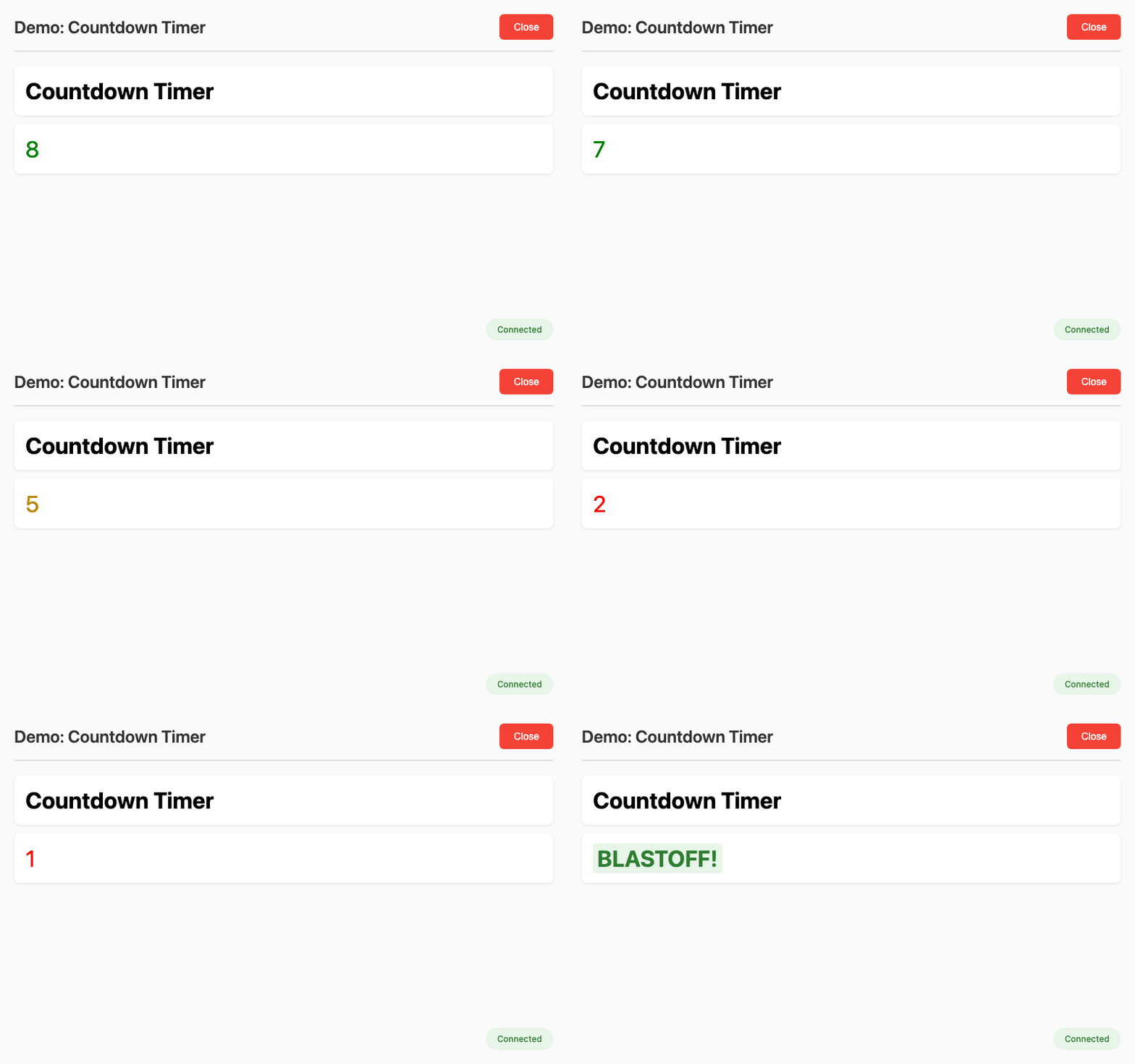
Real-time countdown with color transitions (green → yellow → red) |
|
|
Reactive shopping cart showing |
|
|
Game score tracking with automatic dict updates |
|
|
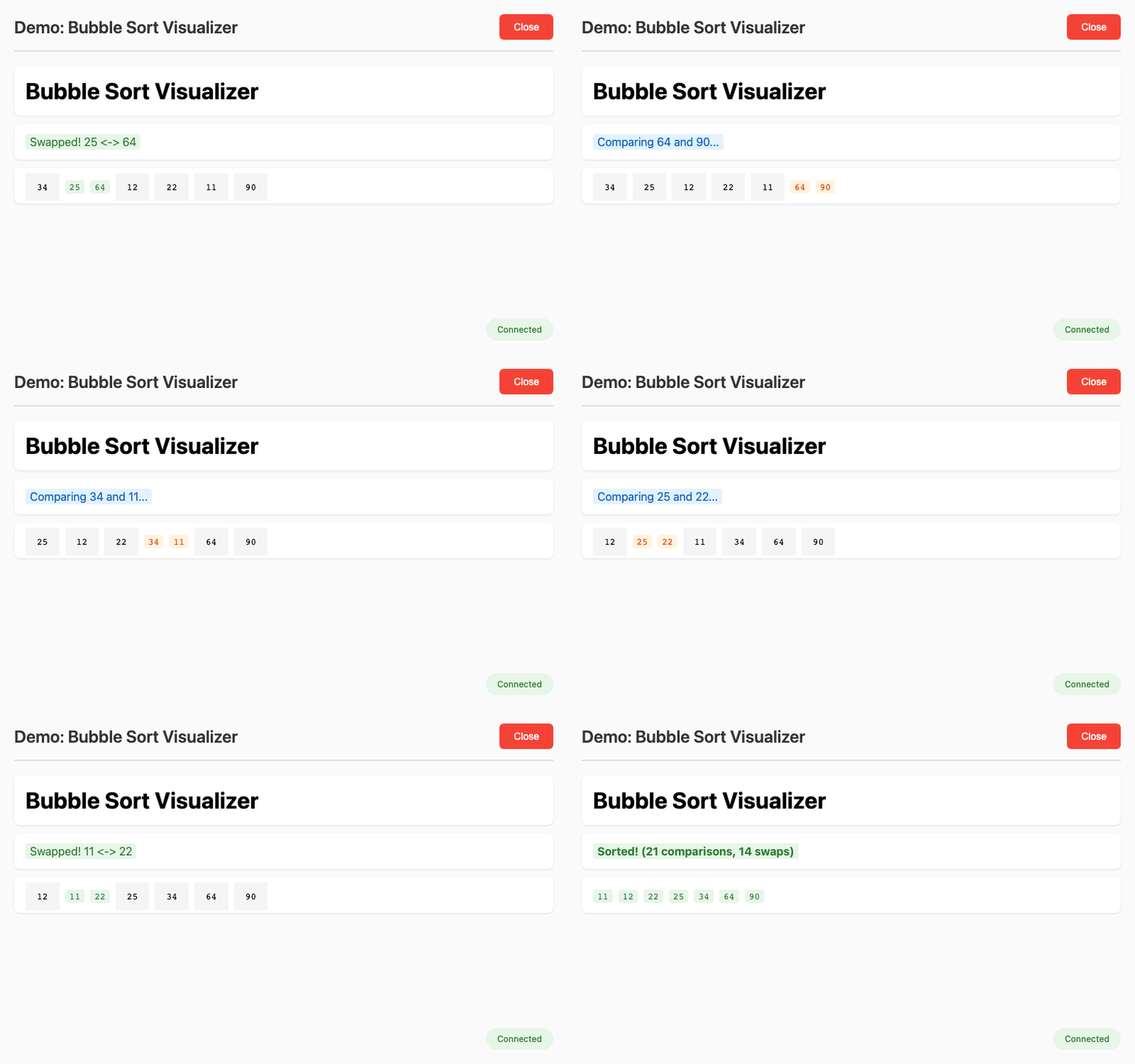
Bubble sort algorithm with step-by-step visualization |
|
|
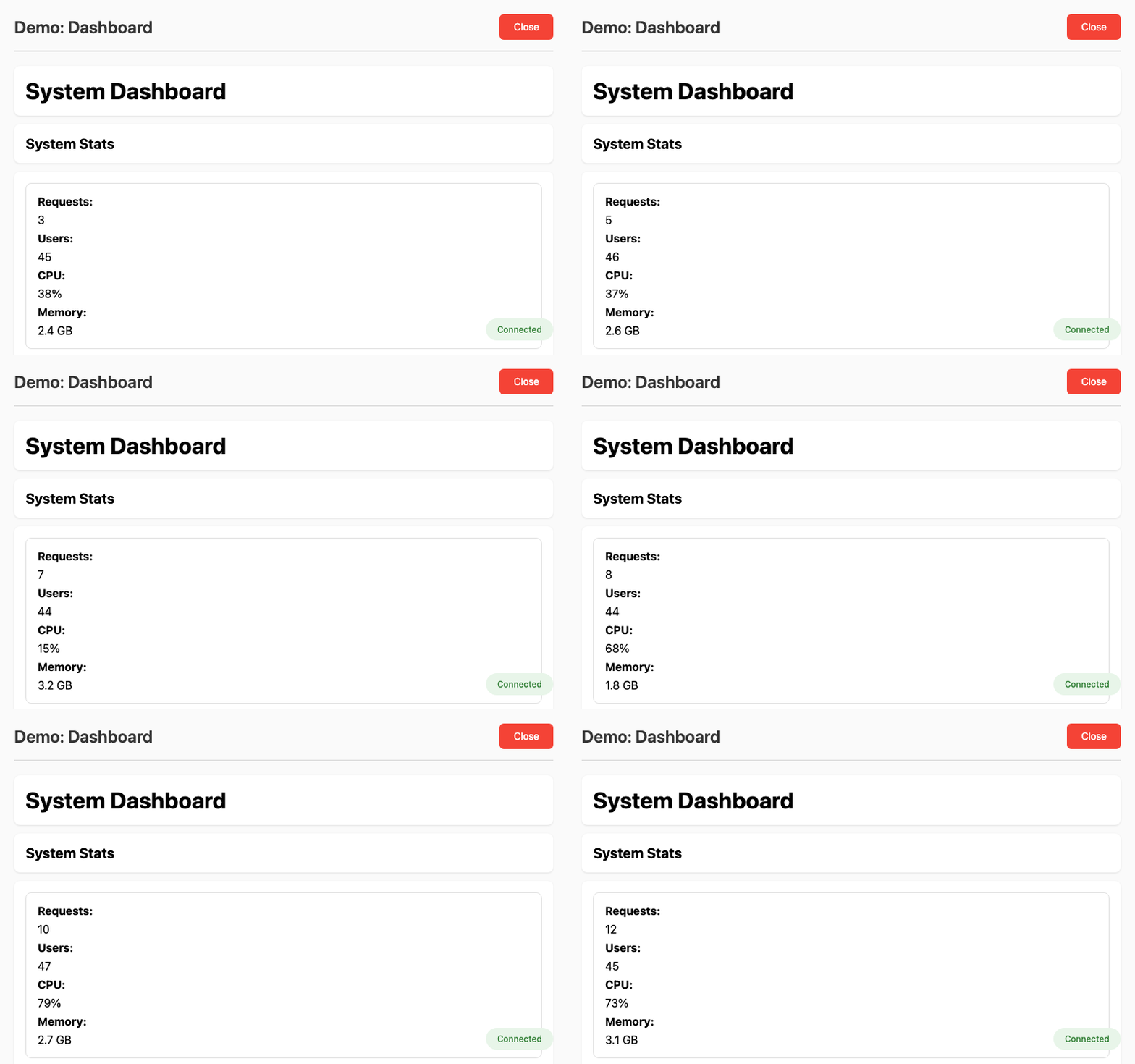
Multi-type dashboard with HTMLString, HTMLDict, HTMLList, HTMLSet |
|
|
Typewriter effect with progressive styling |
|
|
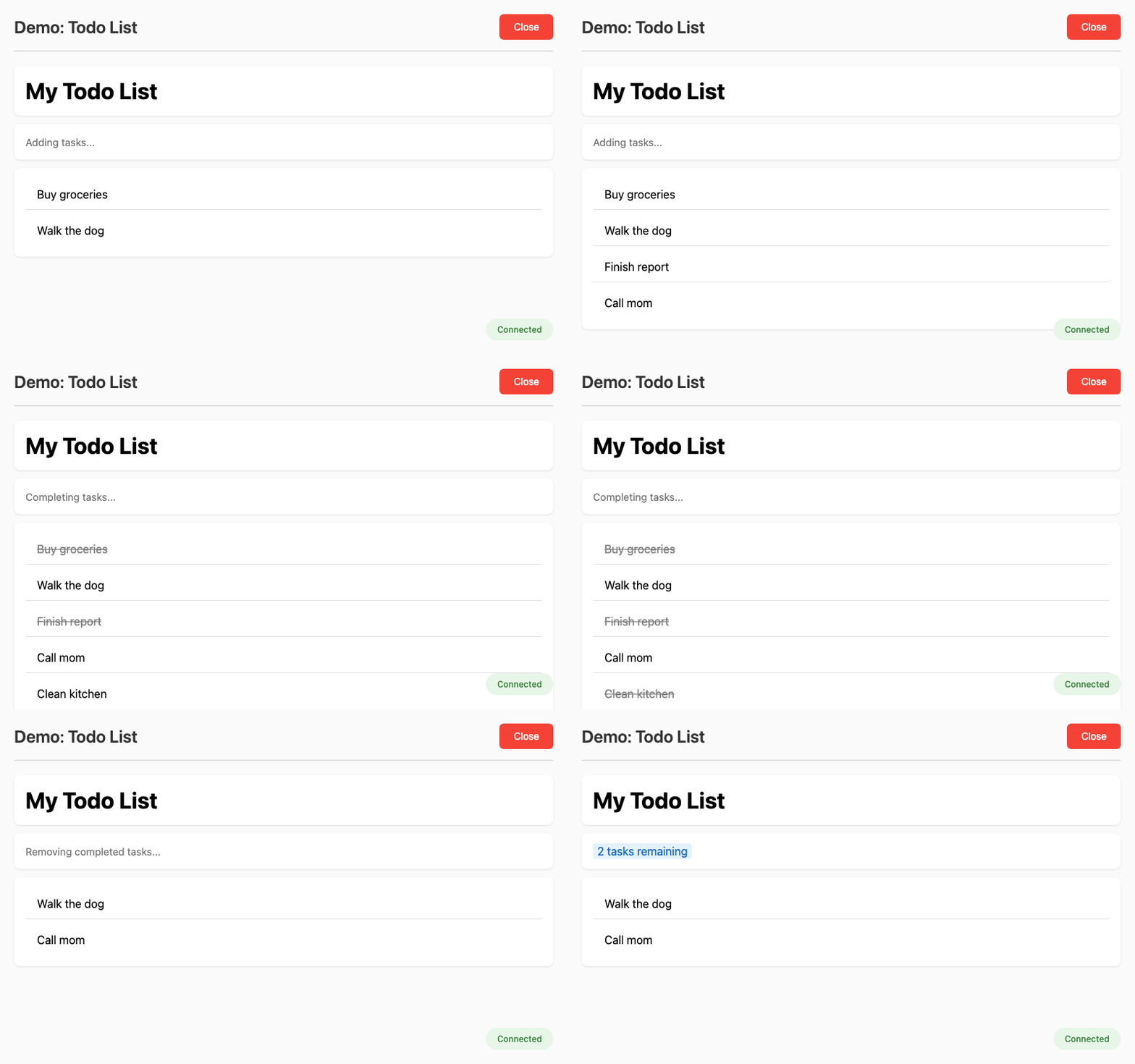
Interactive todo list with CRUD operations |
|
|
ETL pipeline progress tracking |
Input Widget Demos
Demo |
Description |
Source |
|---|---|---|
|
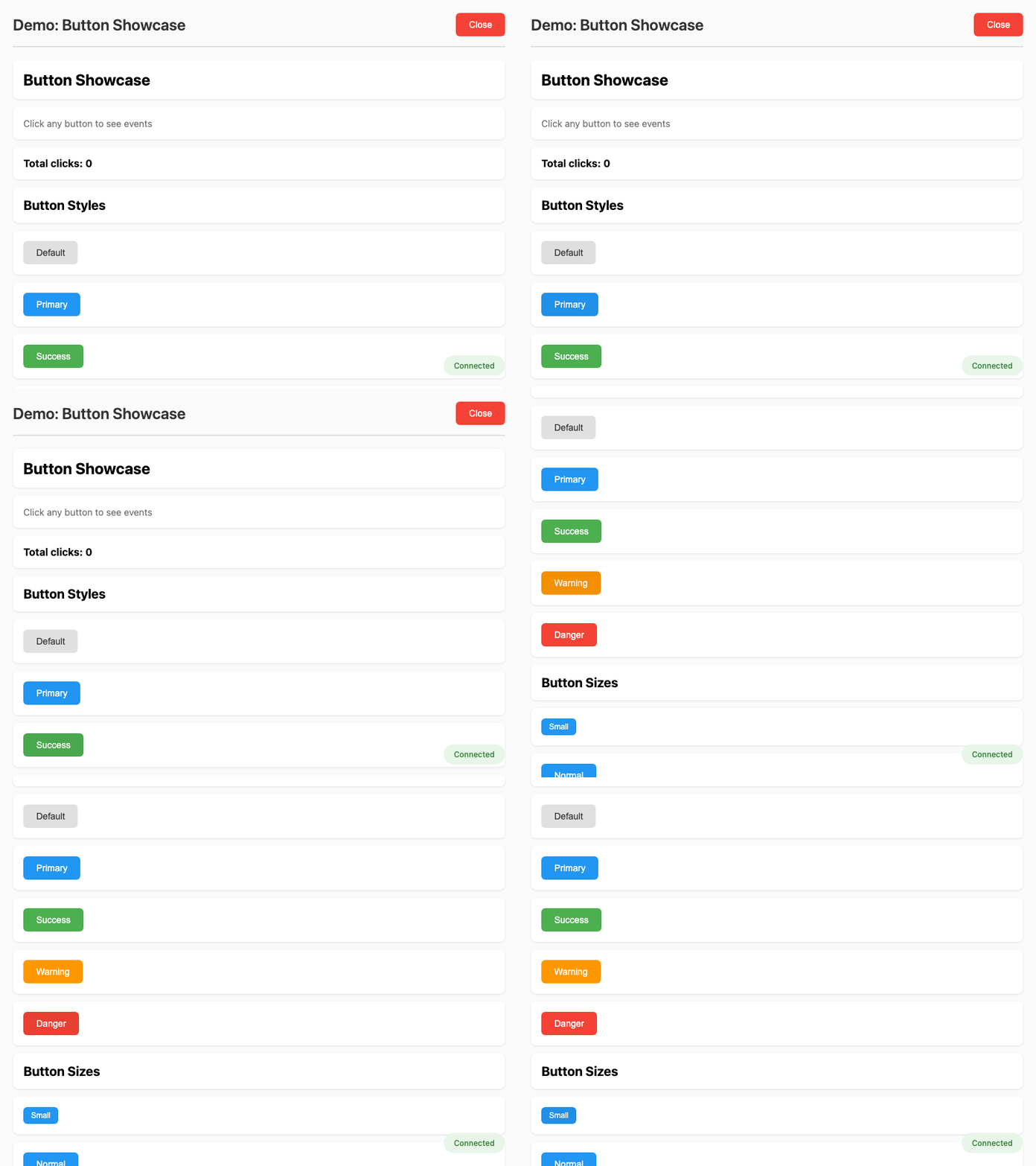
Button styles, sizes, and click event handling |
|
|
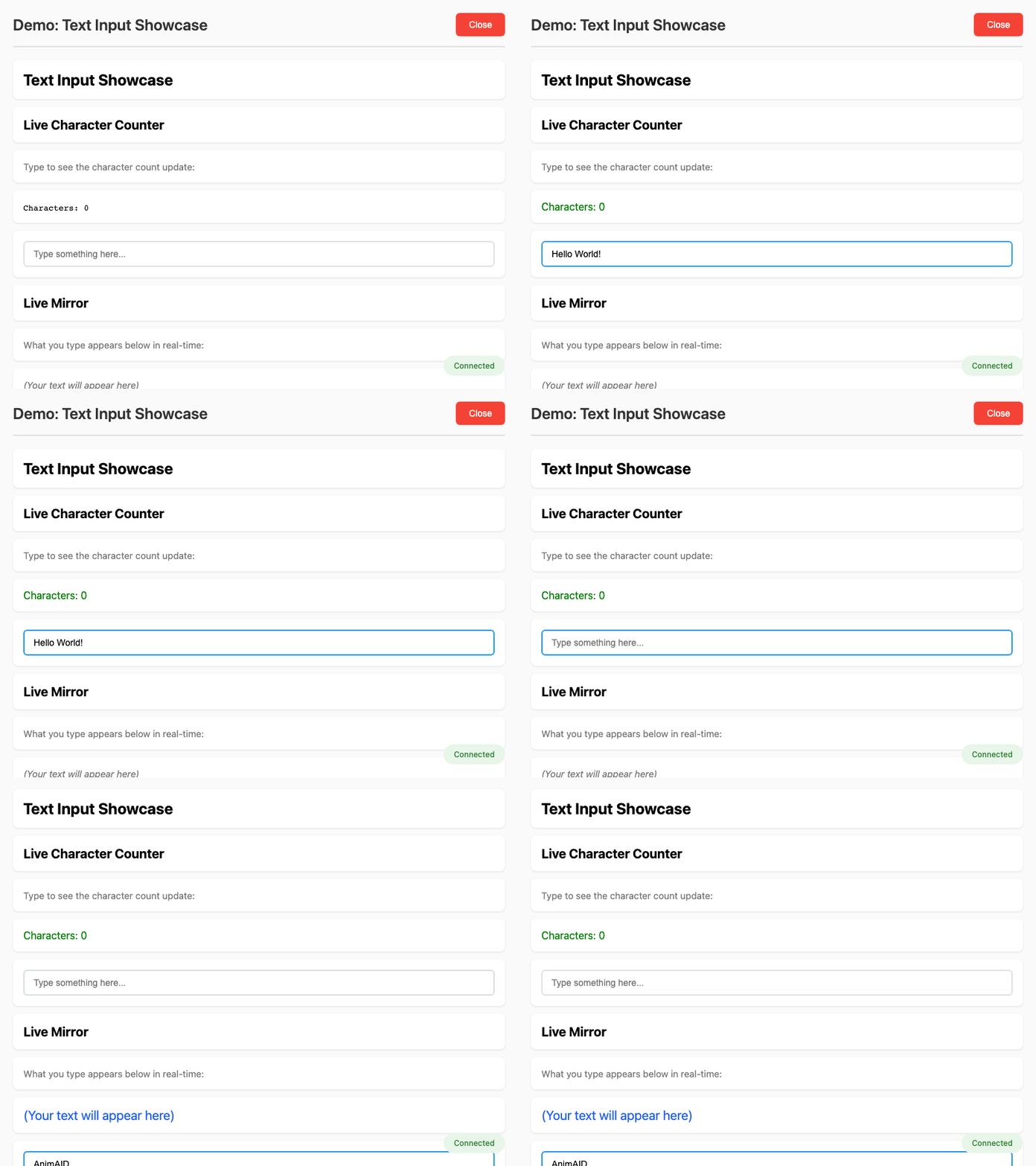
Text input with live typing feedback and validation |
|
|
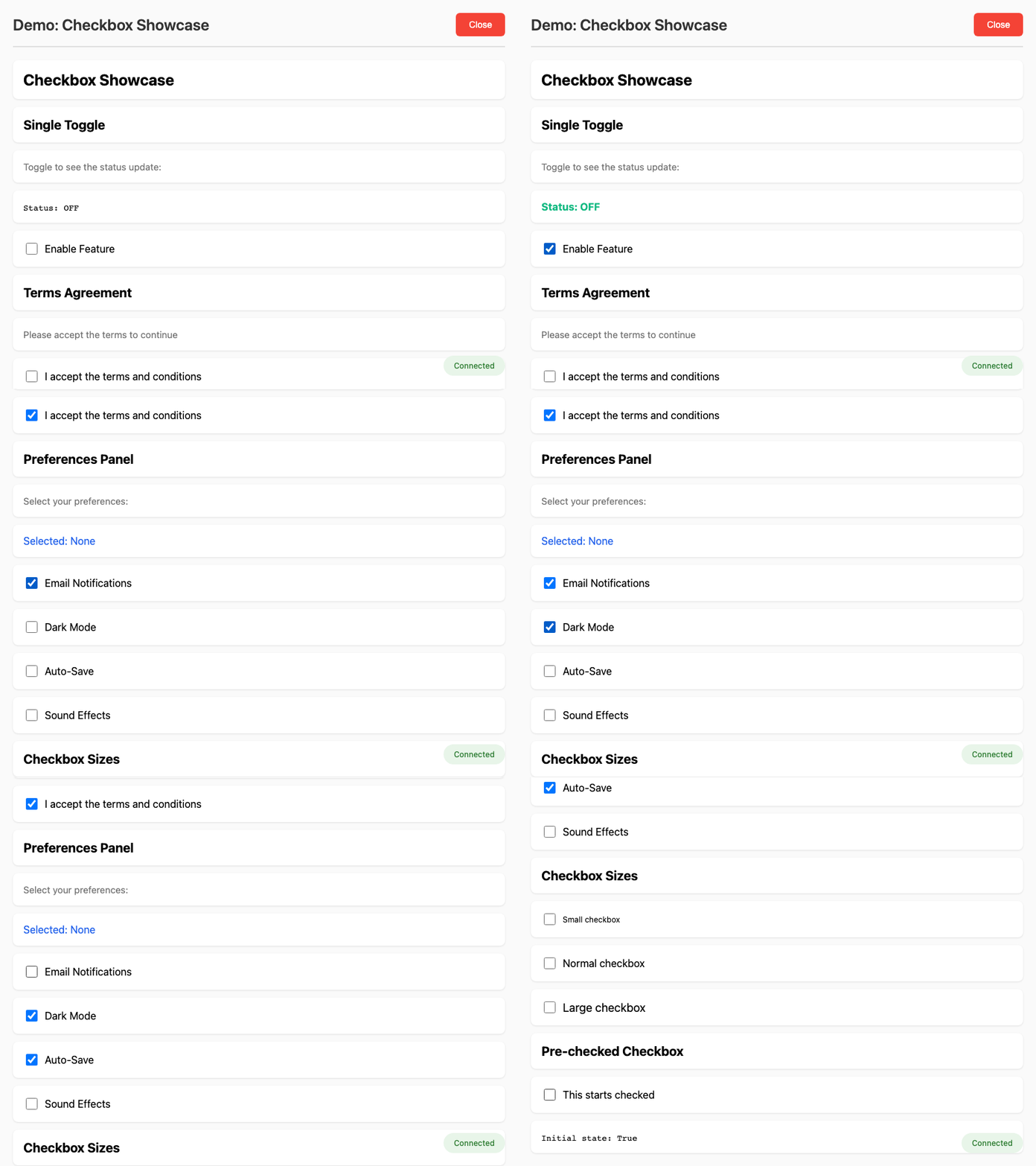
Checkbox toggles and multi-checkbox patterns |
|
|
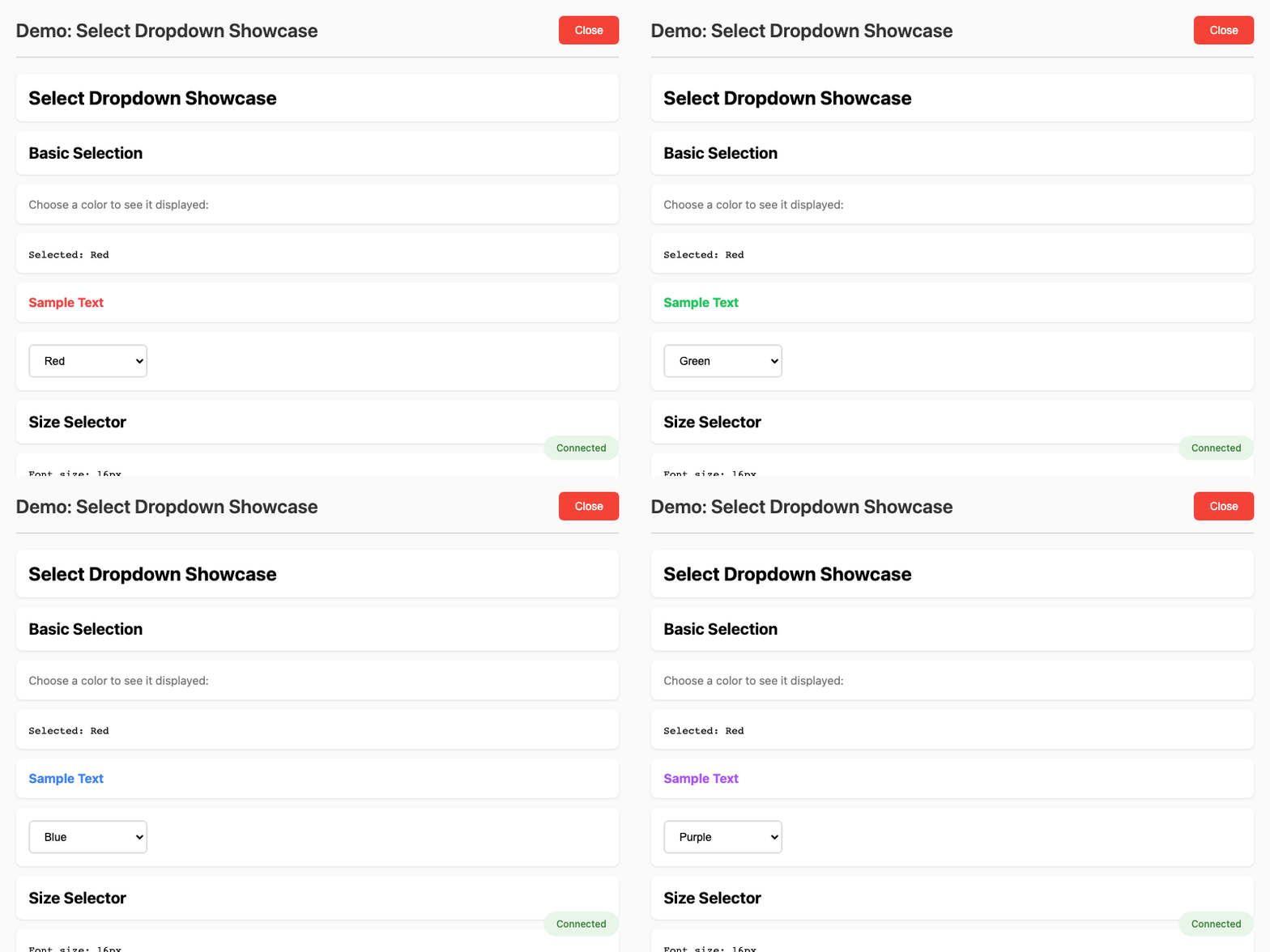
Select dropdowns with dynamic updates |
|
|
RGB color mixer with sliders |
|
|
Interactive greeter with text input and button |
|
|
Counter with increment/decrement buttons |
|
|
Registration form with multiple input types |
Container Demos
Demo |
Description |
Source |
|---|---|---|
|
HTMLRow and HTMLColumn container layouts |
|
|
HTMLCard with shadows, borders, and presets |
|
|
HTMLDivider for visual content separation |
|
|
HTMLSpacer for fixed and flexible spacing |
|
|
Flexbox layouts with alignment options |
Each demo opens a browser window and shows real-time updates as Python code executes.
Demo Gallery
Countdown Timer - Color transitions from green to yellow to red (source)
Sorting Visualizer - Bubble sort with step-by-step animation (source)
Dashboard - Multiple HTML types updating together (source)
Todo App - Interactive task management (source)
Input Widget Gallery
Button Showcase - Button styles, sizes, and click events (source)
Text Input - Live character counting and validation (source)
Checkbox Showcase - Toggle handling and preferences panel (source)
Select Dropdown - Dynamic selection with live updates (source)
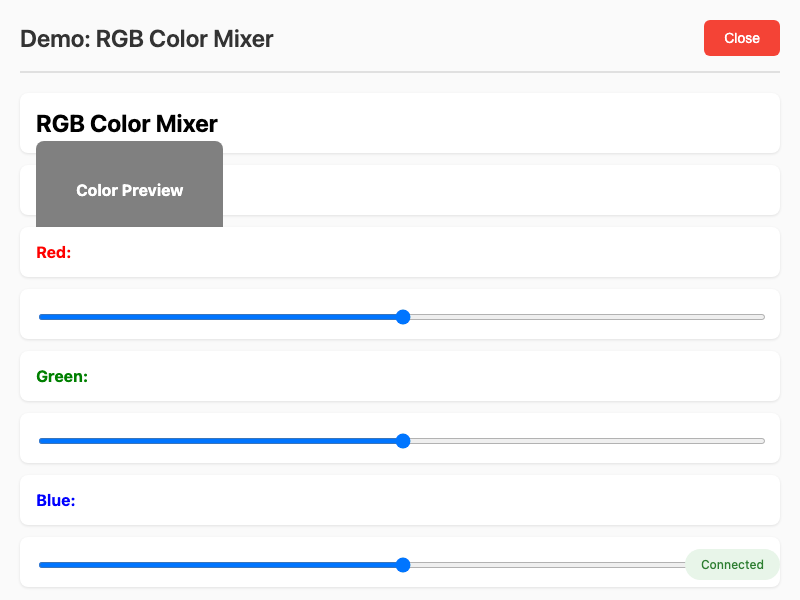
RGB Color Mixer - Sliders for real-time color mixing (source)
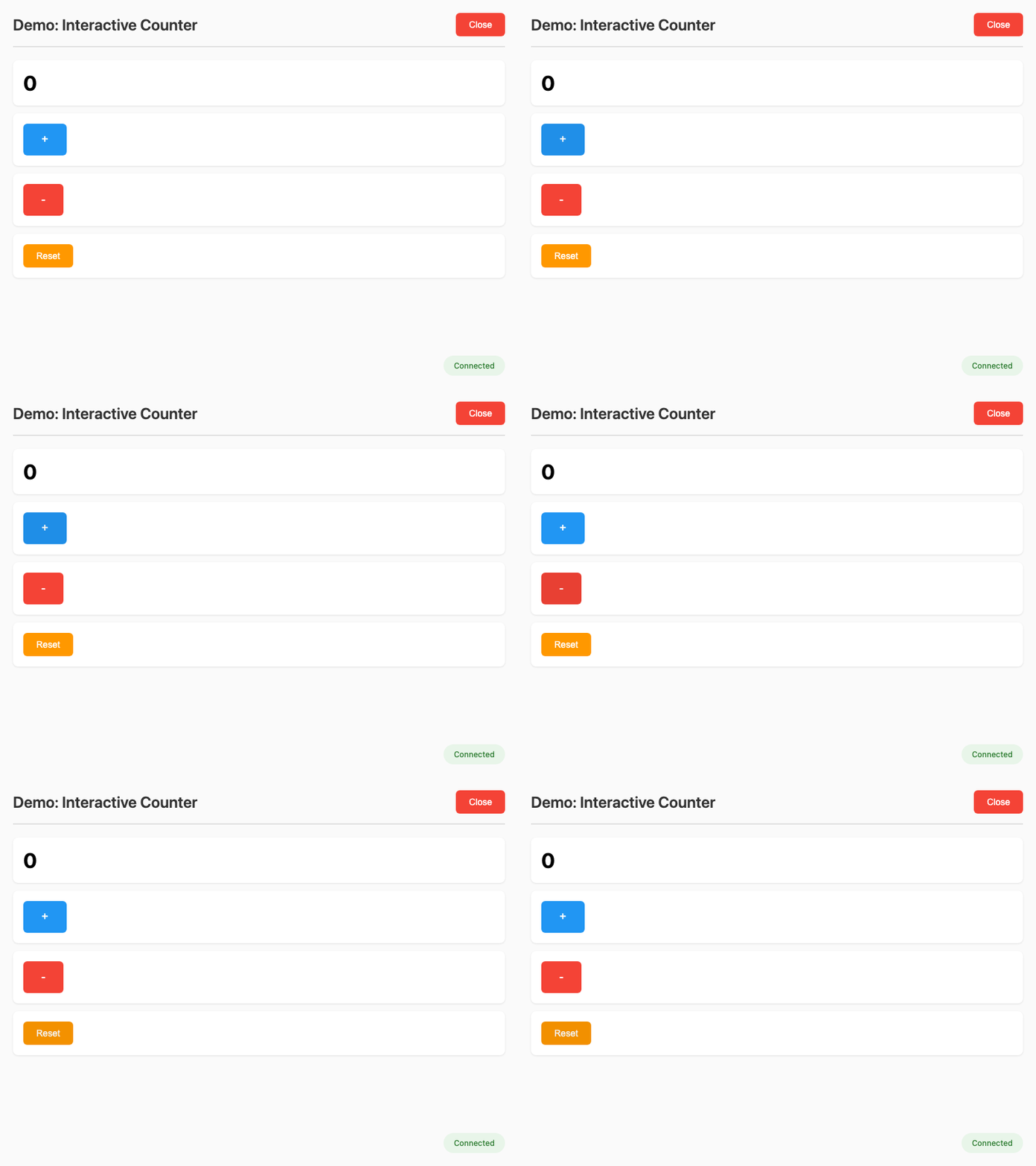
Interactive Counter - Increment/decrement with buttons (source)
Interactive Tutorial
AnimAID includes a comprehensive web-based tutorial that lets you explore all features interactively.
Starting the Tutorial
# Install with tutorial dependencies
pip install animaid[tutorial]

# Start the tutorial (opens browser automatically)
animaid-tutorial

# Or specify a custom port
animaid-tutorial --port 8300
Tutorial Features
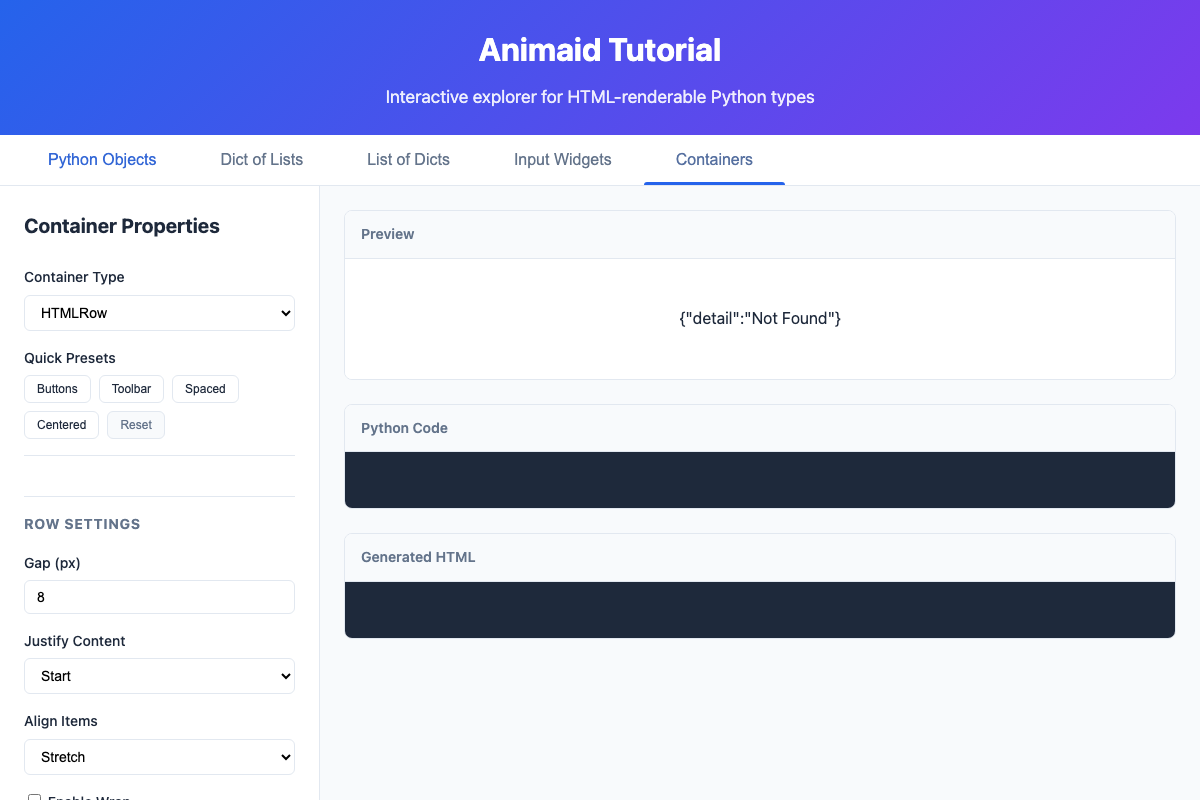
The tutorial provides five main sections:
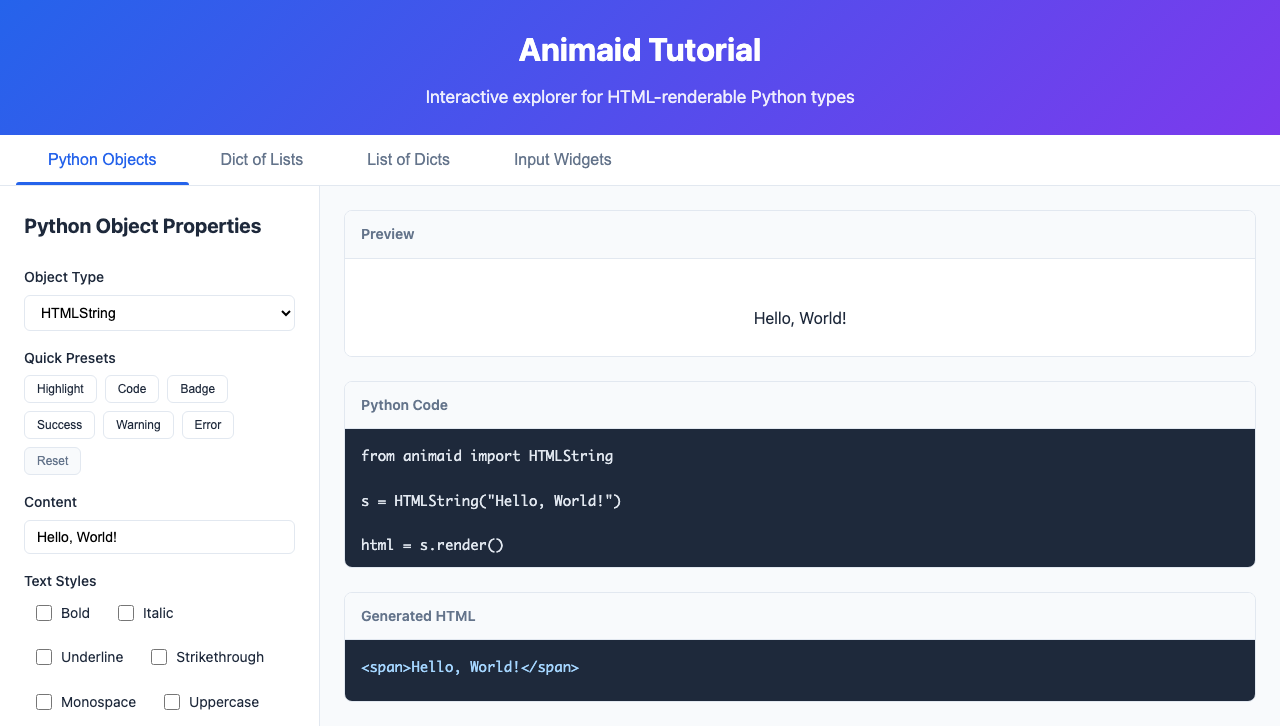
Python Objects Tab
Unified interface for all HTML types (HTMLString, HTMLList, HTMLDict, HTMLInt, HTMLFloat, HTMLTuple, HTMLSet)
Dropdown selector to switch between object types
Type-specific controls and presets
Live preview, Python code, and HTML output
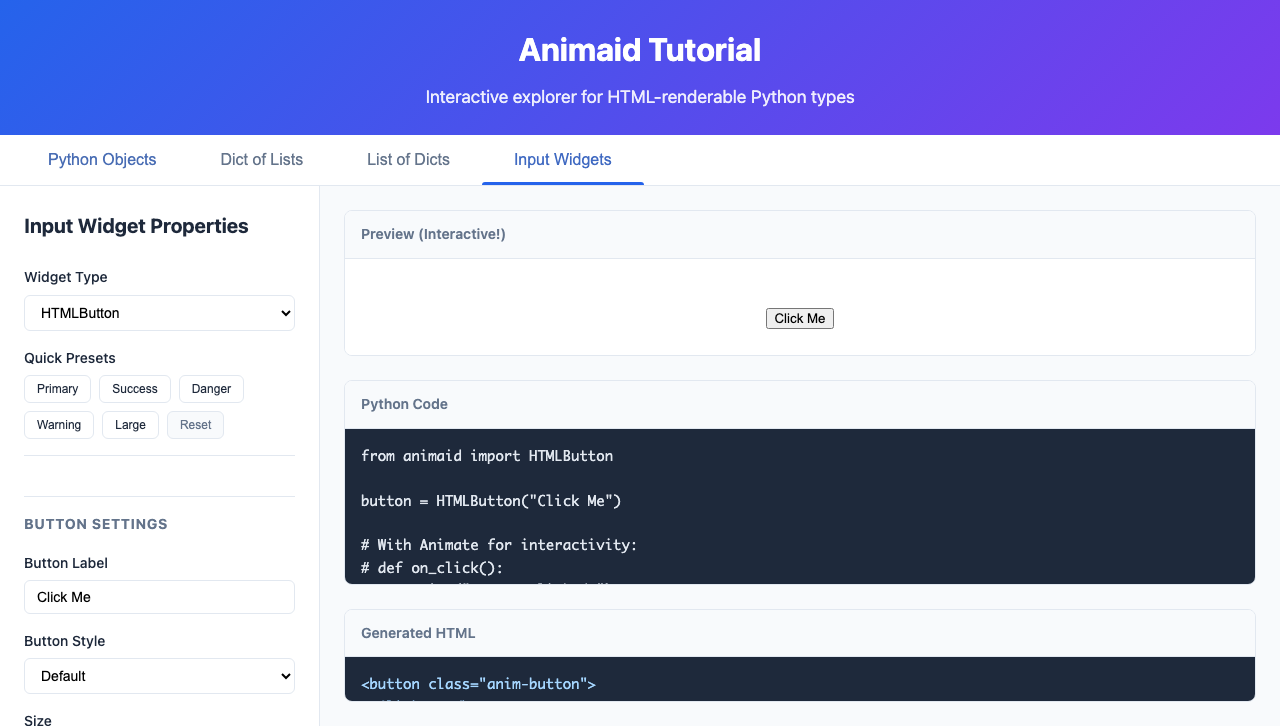
Input Widgets Tab
Interactive input widgets: Button, TextInput, Checkbox, Slider, Select
Widget-specific controls and presets
Live demonstration of event handling
Generated Python code for each widget
Containers Tab
Layout containers: HTMLRow, HTMLColumn, HTMLCard, HTMLDivider, HTMLSpacer
Container-specific controls and presets
Live preview of flexbox layouts
Generated Python code for each container
Dict of Lists Tab
Visualize nested dictionaries containing lists
Configure list styling (horizontal, vertical, pills, cards)
See how nested structures render
List of Dicts Tab
Visualize lists of dictionaries as cards
Configure card styling and layout
Perfect for displaying collections of records
What You Can Do
Experiment: Adjust any property and see instant results
Copy Code: Generated Python code is ready to use in your projects
Learn: See how each style method affects the HTML output
Explore Presets: Quick buttons for common styling patterns